
CapCut templates make video editing easier by providing ready-made editing structures that users can customize with their own photos, videos, text, and other media. Instead of creating every transition and timing adjustment from scratch, a template can provide a starting point for a finished video.
CapCut templates are popular for short-form content, social media edits, photo videos, travel clips, music edits, and many other creative projects. This guide explains what CapCut for PC templates are, how they work, popular categories, how to choose a template, and how to create better videos with them.
What Are CapCut Templates?
CapCut templates are pre-designed video editing projects that can be customized with personal media.
A template may include elements such as:
- Video clip timing
- Transitions
- Effects
- Filters
- Text placement
- Music synchronization
- Animation
- Visual overlays
- Photo arrangements
Instead of building the complete edit manually, users can start with the template and replace its media with their own content.
Why Are CapCut Templates Popular?
Templates save time and provide creative inspiration.
A beginner can use a template to understand how a particular editing style is structured, while an experienced creator can use one as a starting point for a faster workflow.
Common reasons people use CapCut templates include:
- Faster editing
- Trending video styles
- Social media content
- Photo edits
- Music-based videos
- Short-form content
- Creative inspiration
- Easy transitions
- Beat-synchronized edits
Popular CapCut Template Categories
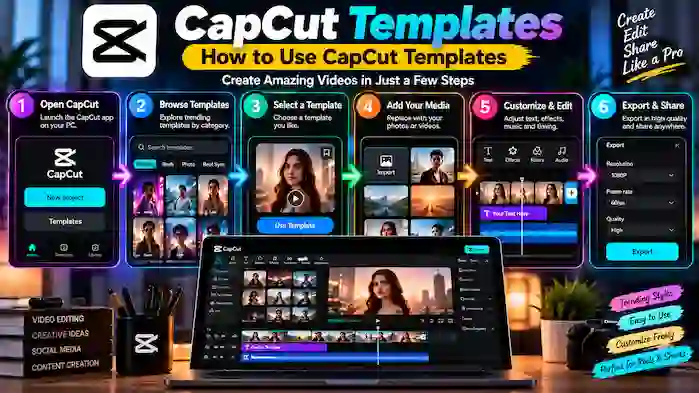
CapCut has templates for many different editing styles.
Trending CapCut Templates
Trending templates are designed around popular editing styles and social media trends.
Trend-based templates can change quickly, so a template that is popular today may become less common later.
Slow Motion Templates
Slow-motion templates are designed around speed changes and dramatic timing.
They are commonly used for:
- Sports clips
- Fashion videos
- Travel footage
- Cinematic scenes
- Dance videos
- Portrait edits
Velocity Templates
Velocity edits use changes in playback speed to create movement and rhythm.
These templates are often combined with music, transitions, zoom effects, and beat synchronization.
Photo Templates
Photo templates allow users to turn multiple pictures into a short video.
They can include:
- Photo transitions
- Music
- Text
- Zoom effects
- Beat synchronization
- Animated layouts
Reels Templates
Reels templates are useful for creating short vertical videos for social media.
They can help creators structure clips according to a particular rhythm or visual style.
Beat-Sync Templates
Beat-sync templates organize visual changes around music.
They can be useful for music videos, photo edits, dance clips, and other content where timing is important.
Attitude Templates
Attitude-style templates often use bold text, transitions, music, and dramatic effects.
The exact style depends on the template and the media added by the creator.
Sad and Emotional Templates
Emotional templates commonly use slower transitions, music, filters, and carefully timed photo or video sequences.
They can be adapted for memories, personal stories, travel moments, or other emotional content.
How to Find CapCut Templates
Users can discover templates through the CapCut experience and template-related content shared online.
When searching for a specific style, use descriptive terms such as:
- CapCut template
- New CapCut template
- Trending CapCut template
- CapCut photo template
- CapCut slow motion template
- CapCut velocity template
- CapCut Reels template
- CapCut beat-sync template
Search intent can help narrow down the type of template you need.
How to Choose the Right CapCut Template
Not every template is suitable for every project.
Before selecting one, consider:
Number of Clips
Some templates require only a few clips, while others need many photos or videos.
Video Orientation
For social media content, check whether the template is designed for vertical or horizontal video.
Music
If the template is built around a specific song or rhythm, make sure the audio style fits your content.
Editing Style
Choose a template that matches the mood and purposPopular CapCut Template Categoriese of your video.
Timing
Some templates use very fast cuts. Others use slower transitions and longer scenes.
Select a style that allows your footage to remain easy to watch.
How to Use a CapCut Template
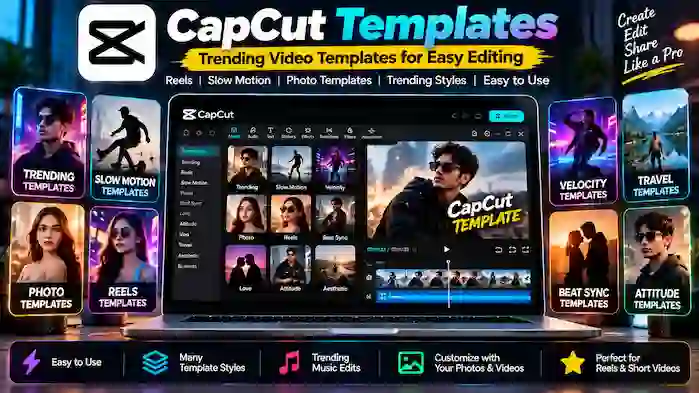
The exact interface can change between CapCut versions and devices, but the general workflow is simple.
- Find a template that matches your project.
- Open the template in CapCut when supported.
- Review the required number of photos or video clips.
- Select your media.
- Replace the template placeholders with your content.
- Review the timing and transitions.
- Adjust available text or other elements.
- Preview the complete video.
- Export the finished project using suitable settings.
Some templates may provide fewer customization options than a project created from scratch.
How to Make CapCut Templates Look Better
A template provides the structure, but the quality of your source media still matters.
Use Clear Photos and Videos
High-quality source media can make the final video look cleaner.
Match Clips to the Timing
Select clips that fit the length and movement of each template section.
Avoid Random Media
Choose photos and videos that support the overall story instead of simply filling every placeholder.
Keep Text Readable
If the template contains text, make sure it remains easy to read on a small phone screen.
Review Every Transition
Fast templates can sometimes make a video feel crowded. Remove or adjust elements when the editing options allow it.
CapCut Templates for Instagram Reels
Instagram Reels are one of the most common uses for short CapCut templates.
Vertical templates can help creators structure short videos around music, transitions, photos, and effects.
For Reels, consider:
- Vertical project dimensions
- Clear opening footage
- Short clips
- Readable text
- Suitable music
- Strong visual timing
- Appropriate export quality
A template should support the content rather than distract from it.
CapCut Templates for Short Videos
Short-form video depends heavily on timing.
A good template can help organize a short video into a clear sequence, but creators should still make sure the final edit has a logical beginning, middle, and ending.
Avoid adding unnecessary effects simply because the template includes them.
CapCut Templates for Photos
Photo templates are useful when you want to turn a collection of pictures into a short video.
For better results:
- Select photos with similar quality.
- Arrange images in a logical order.
- Use photos that fit the template’s timing.
- Avoid blurry or heavily cropped images.
- Check how each photo appears before exporting.
CapCut Templates for Music Videos
Music-based templates can synchronize transitions and visual changes with the rhythm of a soundtrack.
When choosing one, consider whether the music and visual style fit your footage.
The strongest edits usually combine suitable clips with timing rather than relying only on effects.
CapCut Templates for Travel Videos
Travel footage can work well with templates that use cinematic transitions, photo sequences, speed changes, and music.
A travel template can help organize:
- Location shots
- People
- Food
- Landscapes
- Activities
- Short video clips
Choose templates that leave enough space for the type of footage you captured.
CapCut Templates for Gaming Videos
Gaming creators can use templates for highlights, short clips, reaction videos, and montage-style edits.
Fast transitions and beat-synchronized editing can work well for action-heavy footage, while simpler templates may be better for tutorials or explanations.
CapCut Templates for YouTube Shorts
Templates can help creators produce short vertical videos efficiently.
For Shorts, make sure the template works well with the video’s subject and that important information remains visible on smaller screens.
A clean template is often more effective than one overloaded with visual effects.
CapCut New Templates
New templates are frequently searched by users who want current editing styles.
However, “new” does not necessarily mean “better.” A newer template may simply reflect a recent trend.
When choosing a new template, consider its:
- Editing style
- Required clips
- Music
- Timing
- Visual quality
- Suitability for your audience
CapCut Template Download
Users may search for CapCut template download when they want to save or use a particular template.
Template availability and sharing methods can vary depending on the CapCut version, region, platform, and creator.
It is better to use templates through supported CapCut features rather than downloading unknown files from suspicious websites.
CapCut Template Links
Some creators share template links that open a template inside the CapCut experience.
Before using a shared link, check that it comes from a trustworthy source and leads to the expected CapCut destination.
Avoid websites that ask for unnecessary personal information or software installation simply to access a template.
CapCut Pro Templates
Some templates or resources may be associated with Pro features.
Users interested specifically in premium templates can explore the dedicated CapCut Pro Templates section of this website for more information.
A Pro subscription can provide access to supported premium resources depending on the current CapCut offering.
Trending vs General CapCut Templates
There is an important difference between general templates and trending templates.
General CapCut templates cover a broad range of editing styles and may remain useful for longer.
Trending CapCut templates are usually associated with current social media trends and can change quickly.
For evergreen editing, general templates are often easier to reuse. For trend-based content, newer templates may be more relevant.
CapCut Templates and Editing Skills
Templates can make editing easier, but they should not replace learning basic editing skills.
Understanding trimming, timing, transitions, audio, captions, and composition can help you customize templates more effectively.
Over time, creators can use templates for inspiration and eventually build original projects from scratch.
Common CapCut Template Problems
Template Is Not Available
A template may become unavailable because of region, version, creator settings, or service changes.
Template Requires Different Number of Clips
Check how many media files the template expects before selecting your photos or videos.
Template Does Not Look Like the Preview
The final result depends on the media you insert. Different photos and videos can produce a different visual outcome.
Music Is Different
Audio availability can vary because of licensing, region, platform, or changes to the original template.
Template Does Not Open
Check your CapCut version, internet connection, account status, and whether the template is still available.
Are CapCut Templates Free?
Many CapCut templates can be used without paying separately for each template, but availability and access can vary.
Some resources may be associated with Pro features or other account requirements.
Always check the current CapCut interface to determine whether a particular template is available to your account.
CapCut Templates Safety Tips
When looking for templates online, avoid suspicious websites that ask you to install unknown applications or provide unnecessary personal information.
A template should not require you to compromise your account security.
For a safer experience:
- Use supported CapCut template features.
- Verify shared links.
- Avoid unknown downloads.
- Keep CapCut updated.
- Do not provide passwords to third-party template sites.
- Be cautious with modified applications advertised as necessary for templates.
Frequently Asked Questions
What are CapCut templates?
CapCut templates are pre-designed video editing projects that users can customize with their own photos, videos, text, music, and other media.
How do CapCut templates work?
A template provides an existing editing structure. Users replace the provided media with their own content and then review or customize the resulting video.
Are CapCut templates free?
Many templates can be used without a separate template purchase, although some resources may require Pro access or other conditions.
Can I use CapCut templates for Instagram Reels?
Yes. Many templates are suitable for short vertical videos and can be adapted for Instagram Reels when supported.
What is a trending CapCut template?
A trending CapCut template is a template associated with a currently popular editing style, music trend, or social media format.
Can I create my own CapCut template?
Template creation and sharing options depend on the current CapCut platform and account features. Users can also create original projects from scratch and develop their own editing styles.
Do CapCut templates work on PC?
Template availability can vary by platform and version. Check the current CapCut desktop experience for supported templates and features.
Can CapCut templates be used without Pro?
Many templates can be used with the standard CapCut experience, while certain premium resources may require Pro access.
Conclusion
CapCut templates provide a convenient way to create engaging videos without building every editing element from scratch. From photo montages and music edits to Reels, slow-motion videos, velocity edits, and trending content, templates can speed up the creative process.
The best results come from choosing a template that matches your footage, timing, platform, and overall message. Templates should be treated as a starting point rather than a replacement for creative editing.
For current trends, premium resources, slow-motion styles, and specific template categories, explore the dedicated CapCut template guides across this website.